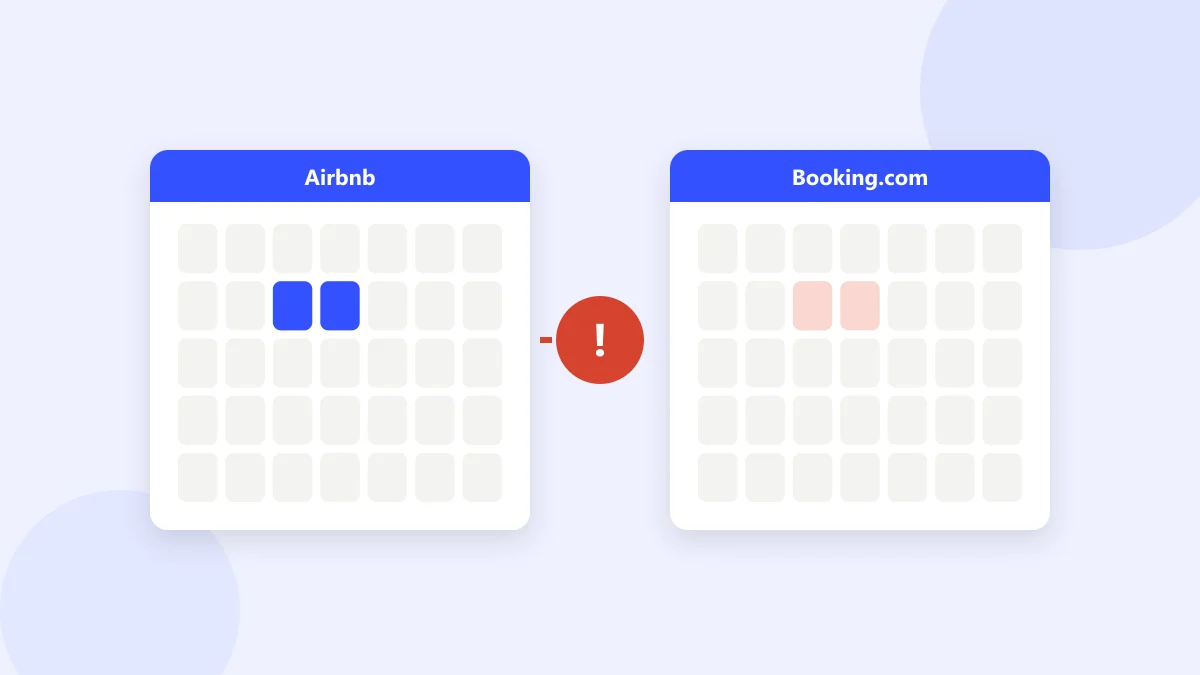
If your Airbnb calendar isn't syncing with Booking.com, the cause is almost always one of seven things: sync set up in one direction only, the wrong room's link, a link that changed, an import error, normal sync delay, the checkout day showing differently, or a problem on the platform's side. Work through them in order below. But first, protect the dates.
Key takeaways
- Block the affected nights by hand before you start troubleshooting.
- Most sync problems are setup problems: one direction missing or the wrong link.
- The checkout day looking "free" is usually correct, not a bug.
- If a double booking already happened, act within the hour and move the later guest.
First: protect the dates right now
While the sync is broken, every open night on one platform might already be booked on the other. Before anything else:
- Open both calendars side by side.
- For every booking on Booking.com, check the same nights are blocked on Airbnb.
- Do the same the other way round.
- Block any night that's missing by hand.
This takes ten minutes for a small property and stops new double bookings while you fix the cause.
Takeaway: fix the risk first, the sync second.
Check 1: Is the sync set up in both directions?
Syncing is two separate connections:
- Airbnb's link imported into Booking.com
- Booking.com's link imported into Airbnb
If only one exists, bookings flow one way and not the other. This is the most common cause. Open Booking.com's Sync calendars page and Airbnb's calendar import settings, and confirm each has a connection from the other.
Takeaway: if one side has no imported calendar, set it up using the step by step sync guide.
Check 2: Is the link for the right listing or room?
Every room or listing has its own link. With several rooms, it's easy to paste Room 1's link into Room 3's connection. The sync then "works", just for the wrong room.
Test it: block a night far in the future on one room, wait a few hours, and see which room gets blocked on the other platform.
Takeaway: name every connection after its room, like "Booking.com Room 3".
Check 3: Did the link change or expire?
Links can stop working when:
- you regenerate or reset the export link on either platform
- a listing is turned off and back on, or recreated
- a room type is changed or merged on Booking.com
The old link stays in the other platform's settings, pointing at nothing. Delete the old connection, export a fresh link and import it again.
Takeaway: after any change to a listing or room type, recheck its sync.
Check 4: The "not in iCal format" error
When Airbnb says a Booking.com link "is not in iCal format", it usually means one of these:
- the link was copied incompletely (check it ends in
.ics) - you copied the page address instead of the export link
- Booking.com's calendar export is temporarily failing on its side
Copy the export link again directly from Booking.com's Sync calendars page and paste it fresh. If the same error comes back with a correct link, it's likely a platform problem. Skip to check 7.
Takeaway: re-copy the link before assuming anything is broken.
Check 5: Is it just the delay?
A new booking can take from 30 minutes to a few hours to appear on the other platform, longer at busy times. If the booking is less than a few hours old, wait and check again.
If it still hasn't appeared after 12 hours, it's not the delay. Go back to checks 1 to 4. Why the iCal sync delay happens explains the timing.
Takeaway: less than a few hours old? Wait. More than 12? Something's wrong.
Check 6: The checkout day and last night mix-up
This one confuses many hosts. A guest books from the 5th to the 7th. That's two nights, the 5th and the 6th. They leave on the morning of the 7th, so the night of the 7th is free for a new guest.
Here's where it gets confusing:
- The checkout day looks open on the other platform. That's correct. The night of the 7th is available, and a new guest can check in that afternoon.
- The last night looks open. If the 6th shows as free on the other platform, that is a real problem. The block is one night short.
- The checkout day shows as blocked. Some tools add the checkout day to the block. You lose a sellable night, but no double booking can happen.
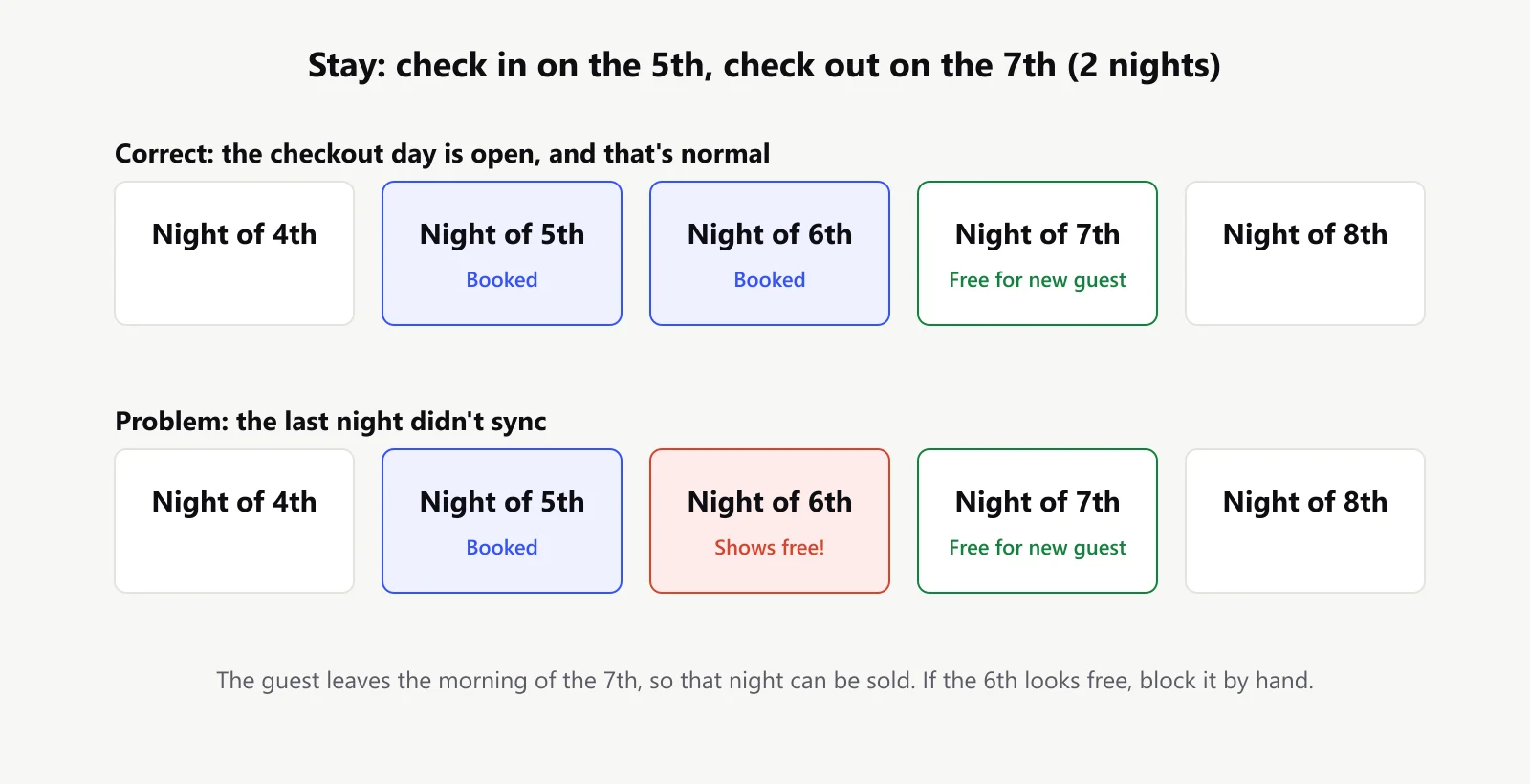
To check yours, look at a real booking and compare the blocked nights on both platforms. If the last night is missing, block it by hand on each new booking and report it to the platform.
Takeaway: the checkout day being free is normal. The last night being free is not.
Check 7: Is the problem on the platform's side?
Sometimes nothing is wrong on your side. Both Airbnb and Booking.com have had periods where calendar exports failed for many hosts at once.
Signs it's the platform:
- the sync worked for months and stopped with no change from you
- a correct, freshly copied link still fails
- other hosts in the Airbnb Community or Booking.com partner forums report the same thing
If so, contact the platform's partner support, and keep blocking dates by hand until it's fixed.
Takeaway: if everything on your side checks out, assume a platform issue and keep blocking manually.
If a double booking already happened
Act fast. The longer you wait, the fewer options the second guest has.
- Decide who keeps the room. Usually the first booking stays. Cancelling it can hurt your standing on that platform more.
- Find the second guest another room. Offer a different room at your property, or call a nearby property and arrange a room of equal or better value.
- Call, don't just message. Explain clearly, apologise, and say what you've arranged.
- Cover the difference if the new place costs more. It's cheaper than a bad review.
- Cancel through the platform properly, so the guest gets a full refund straight away.
Handled well, many guests leave a fair review even after a mix up. Getting your first reviews covers why the way you communicate matters more than the problem itself.
Takeaway: a fast, honest fix protects your rating far more than the mistake hurts it.
Frequently asked questions
Why is my Booking.com calendar not syncing with Airbnb?
Most often the sync was set up in one direction only, or the link belongs to a different room. Check both platforms have an imported calendar from the other, then test with a fake block.
Why does Airbnb say my link is not in iCal format?
The link was copied incompletely, it's the wrong address, or Booking.com's export is failing temporarily. Copy the export link again directly from Booking.com.
Why is the checkout date open on my other calendar?
That's normal. The guest leaves that morning, so the night is free for a new arrival. Only worry if the last night of the stay is open.
How do I stop this happening again?
Test the sync in both directions, set a one day booking notice, and check both calendars each morning in busy season. How to stop double bookings has the full approach.
Bottom line
Protect the dates first, then go down the list: both directions, the right link, a fresh link, the import error, the delay, the checkout day, and finally the platform. Most fixes take under five minutes.
If you'd rather see every booking from both channels in one calendar, so a missing block stands out immediately, that's what Hostberg's calendar does.